
BEGINNER: In our Beginner Guides and Tutorials, you will see me give Prompts and Learning Targets. These directions will simplify the process of learning Adobe Illustrator. LEARNING TARGET: Understand the Primary Building Tools and Options in Adobe Illustrator.

ADVANCED: As I am creating my artwork, pay attention to the Sequence of Events, Resources, and Tool Options as it relates to building a "Workflow." LEARNING TARGET: Apply Building, Variation, Editing, and Advanced Color Techniques to your own Artwork.

STOCK PHOTOS: I recommend using (Unsplash / Pixabay / Pexels) for your Sketch, Drawing, and Color References. Bookmark websites for Photo References to use with your artwork and designs.

FREE RESOURCES: As I create my artwork, pay attention to the free resources used throughout the workflow. FREE RESOURCE GUIDE / FREE RESOURCE GUIDE / FREE RESOURCE GUIDE

ARTBOARDS: File-New. Use a size or ratio that you can use for all of your own artwork. I recommend a 1080px by 1080px artboard for websites and social postings. Many of you will be looking to export your own artwork to Instagram. You can modify the size of the artwork or artboard with the Artboard Tool or Properties Panel.

SKETCH OR TRACED PHOTO: I recommend starting from a Clean Line Drawing or a simple Traced Stock Photo for your artwork and designs. Create a "Traceable Path" to align with the Building Tools in Adobe Illustrator. You can speed up your workflow by using a Quick Sketch when you become more advanced.

TEMPLATES: File -Place in your own Drawing, Sketch, or Traced Stock Photo. Select your Resource Layer. (It will usually be your only layer) In your Layers Panel, select the Menu in the Upper-Right Hand Corner. Drop down to Template. This will create a 50% Opacity and Lockout the Layer. Create a New Layer above to start "Building".


COLOR SWATCHES: I recommend using (Adobe Color / Canva Colors) for your Color Themes. Bookmark websites for Color Themes to use with your own artwork and designs.

FREE RESOURCES: As I create my artwork, pay attention to the free resources used throughout the workflow. FREE RESOURCE GUIDE / FREE RESOURCE GUIDE / FREE RESOURCE GUIDE

SAVING SWATCHES: Go to Adobe Color. Select the Color Theme you would like to save. If you have CC, you can Add to your Library. If you have an older version, download as an ASE File.

OPENING LIBRARIES: Open your Library Panel. Select the Color Theme you would like to use. Right Click on the Color Theme to Add Theme to your Swatches Panel.

OPENING SWATCHES: Open your Swatches Panel. In the Swatches Menu, drop down to Open Swatch Library. Select "Other Library" to open an ASE File saved on your computer.

FONT FAMILIES: I recommend using (Adobe Fonts / Google Fonts / Font Squirrel / Dafont) for Fonts. Bookmark websites for Fonts to use with your own artwork and designs.

FREE RESOURCES: As I create my artwork, pay attention to the free resources used throughout the workflow. FREE RESOURCE GUIDE / FREE RESOURCE GUIDE / FREE RESOURCE GUIDE
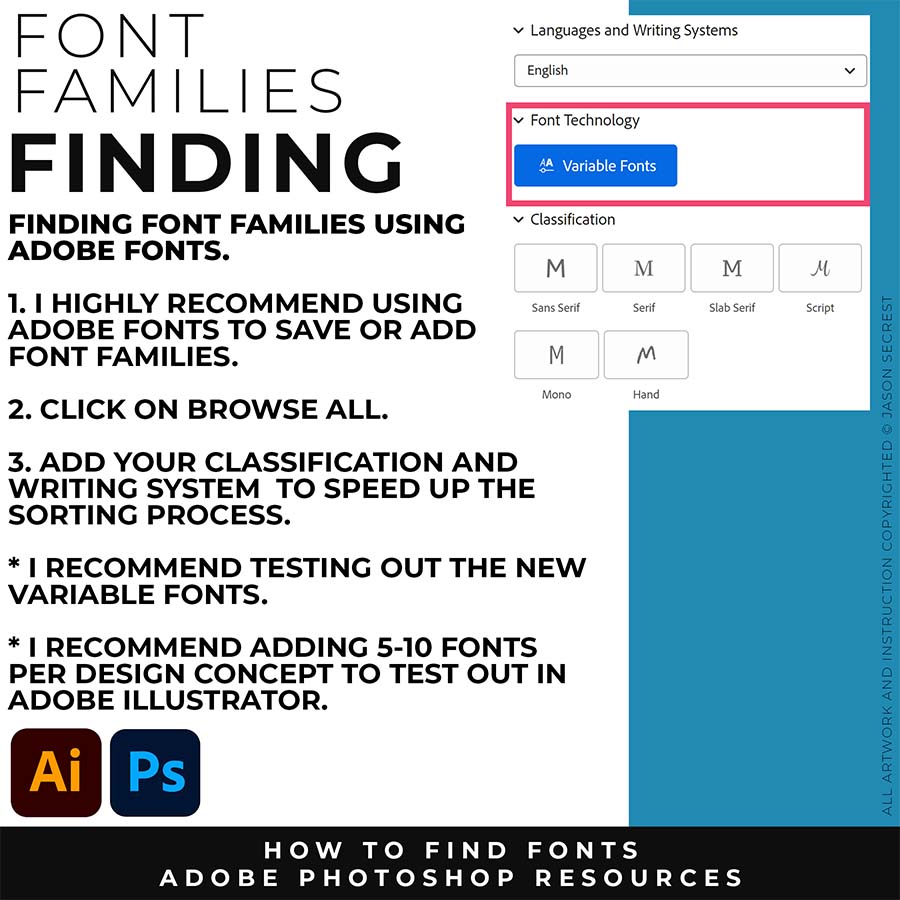
FINDING FONTS: For those of you using Adobe Fonts, I recommend starting from the Browse All, Trending, and Recommendations. I do recommend testing out the new Variable Fonts.
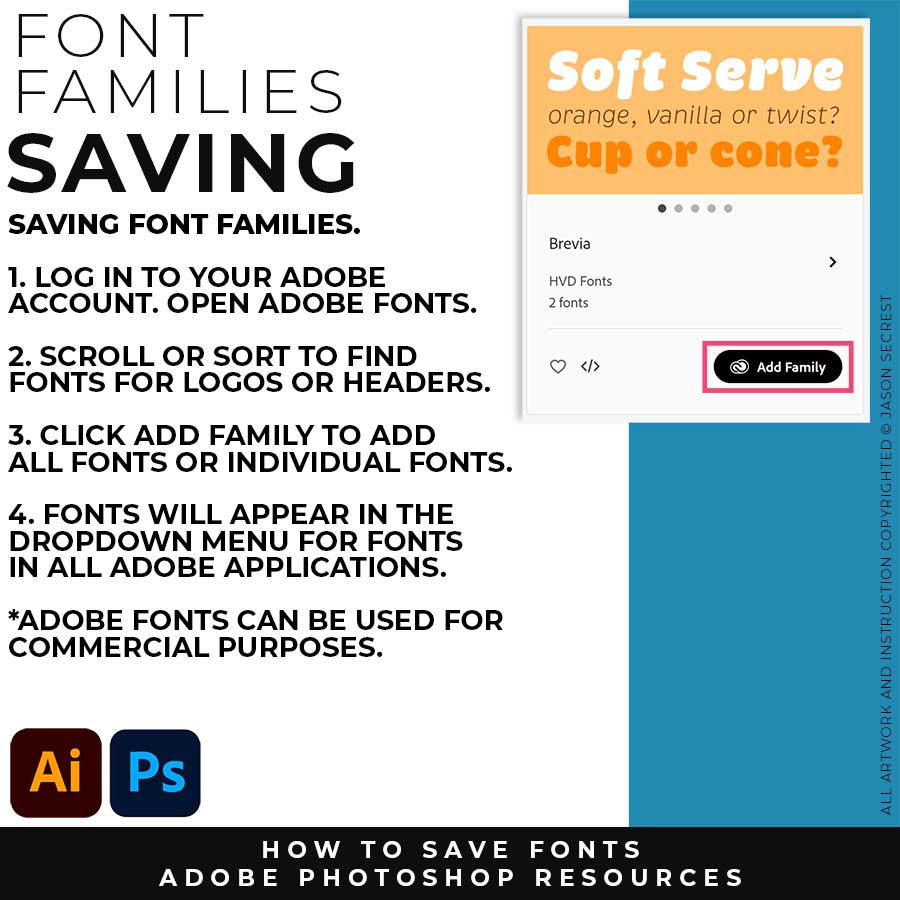
SAVING FONTS: When you find a Font or Family you like, you can simply click the Add Family to your Account. The Fonts will be available across your Adobe Programs.
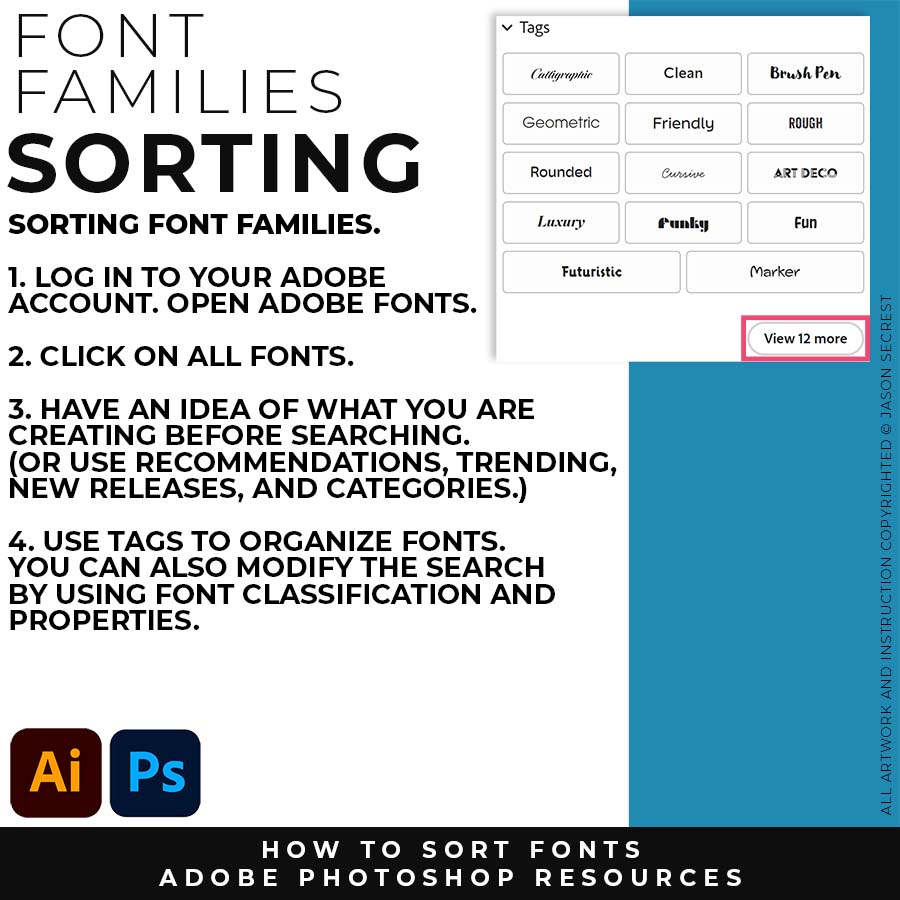
SORTING FONTS: Have an idea of what you are looking for before looking for Fonts. Use the Categories and Tabs to sort through the Font Families.